Search Active Directory from the desktop
195 words, 1 minutes
That day, at work, I had to check if an application has been implemented as it should have been. The application was supposed to use Active Directory groups to filter users access to some data.
I’m no admin on my desktop ; but I had to find a “standard” way to query the corporate Active Directory. Here’s the trick.
From the Start menu, run the following command:
%SystemRoot%SYSTEM32rundll32.exe dsquery,OpenQueryWindow
This will pop-up that windows:
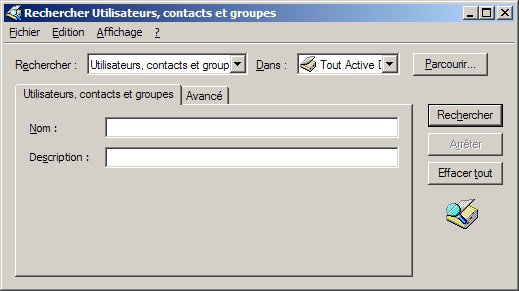
If you enter a name in the Name field and hit Find, it will search and show
every entry that match your name search.
On the Advanced tab, you can specify more generic search.
For example, if you search every Active Directory group that start with
“GG_APP”:
- Drop the
Fieldlist and select “Group » Name” ; - In the
Conditionlist, select “Starts with” ; - In the
Valuefield, enter “GG_APP” ; - Click the
Findbutton.
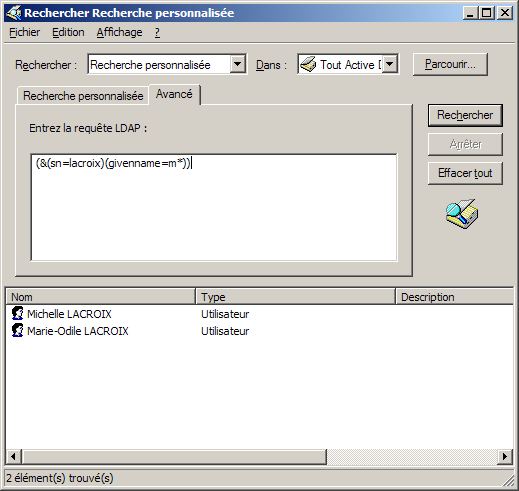
You can even enter complex LDAP search:
- In the
Searchlist, select “Custom search” ; - Select the
Advancedtab - In the text zone, enter your LDAP search request and hit the
Findbutton.
Here’s an example of a simple complex LDAP search:
That’s all about it!