Overview of AOOSTAR WTR Pro on *BSD
2263 words, 11 minutes
Finding a NAS that provides NVMe and SATA storage while being tiny enough to sit in my 10" rack, have a CPU that’s not hogging, use a small amount of watts and offers usage of a non-proprietary OS is not simple. Especially when you have the “must run any BSD” to the equation.
But here we are, the AOOSTAR WTR Pro Ryzen edition meets all my prerequisites. And here’s what I discovered.
Note that I aimed this machine at running FreeBSD. So I just had a quick look at other BSDes just to get a rough idea of what you get “by default”. It’s not a fair features and power usage comparison. I spend way more time tuning FreeBSD.
Build quality
The case is using metal, not plastic. And in a 25-27 degC room, it always feels rather cold to the hands. It also fits pretty well in my 10" rack space.
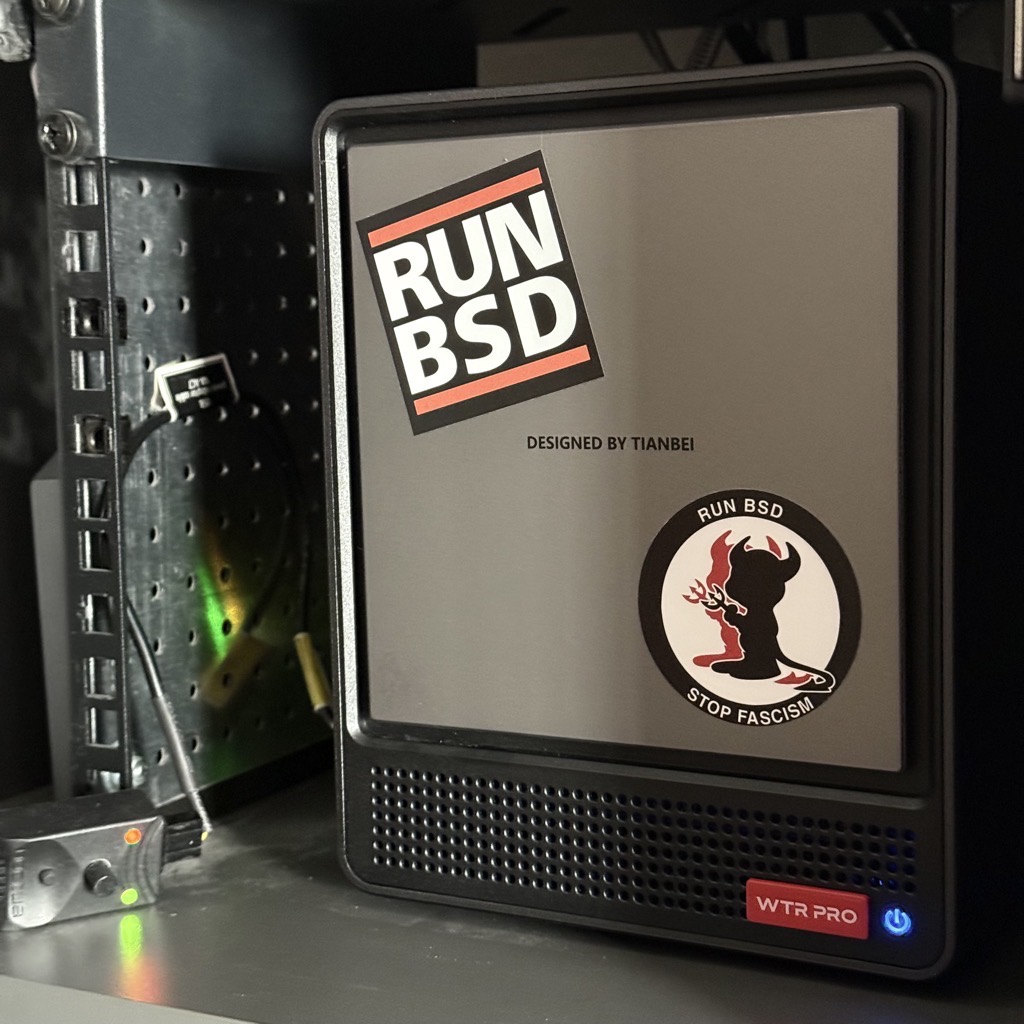
RAM and NVMe slots are located beneath the machine and accessible using screws. The slots are numbered so that you don’t have any surprise when you plug stuff and look and the IDs in the OS. If you ever care about this…
The SATA disks are accessible from the front. The front cover uses magnets to stay in place and hide the caddies and LEDs. The caddies have click and pull mechanism. 3.5" SATA disks are set and removed using a tool-less mechanism that is quite smart. 2.5" SATA disks need to be fixed to the tray using screws. Those are a bit less trouble free. It took me quite a few tries & fails to succeed in plugging the 2.5" disks in. You seem to need to lift the caddy up a bit. But once it’s done, everything goes as expected. Also, SATA disks are numbered from bottom (SATA 1) to top (SATA 4). This may be important if you have to deal with device number IDs.
The fan is quite noisy by default and produces a low-pitched sound. Also, I don’t know how to describe it but you hear the metallic case in that sound.
Here’s YouTube videos I watched before buying that machine:
- Hardware Haven - The Home Server I’ve Been Wanting
- Robtech - AOOSTAR WTR Pro Review
- Aoostar WTR Pro Ryzen 7 5825U BIOS walkthrough
BIOS
SecureBoot is disabled by default. Running FOSS system is
straightforward. Hitting <F7> on boot gets you to the selection menu
while hitting <Del> gets you to the BIOS.
With a single 32 GB memory module and no storage at all, waiting in the BIOS’ PC Health Status page uses about 28 W. System Temp is 26 degC, CPU Temp is 68 degC, CPU Fan speed around 1900 RPM, System Fan Speed around 820 RPM. That explains the whistling noise…
Uplugging the USB 10" LCD 800x600 and USB keyboard does not change the power usage. Plugging the RJ45 cable does not change power consumption either.
Adding two NVMe drives does not seem to change the power consumption that much. I’m using a Fibaro FGWP-102 and Home-Assistant to keep an eye on power usage, so I may sometime miss a Watt or two :)
Linux
Review videos announced some really low power usage using Proxmox in IDLE mode. Not knowing it that much, I went installing Linux Alpine and Debian 13 to serve as power consumption base.
Once the installer is started and let IDLE for a couple of minutes, the power consumption is about 12 W.
Once installed on one NVMe, the other not being used at all, power
consumption is about 13 W and the fan is still audible. htop indicates
that the CPU idles at 1 GHz.
After installing powertop and running powertop --calibrate, the
overall power consumption was about 12 W. Once ran using powertop --auto-tune, the power consumption dropped to 11 W. This was with
Alpine Linux. When I did the same on Debian 13, the power consumption
dropped down to 9W.
The fan was still (way too) audible to my likings. lm-sensors reported
about 34-38 degC for various parts of the system.
Disconnecting the USB keyboard and screen made power usage drop to 8 W on Debian. I forgot to do this test with Alpine Linux.
NetBSD 11.0
Once booted and waiting for the keyboard layout selection, the power usage was about 19 W.
At first boot, after idling a bit, the power plug indicates 18 W. A look
at sysctl shows the system knows about 3 frequencies. The CPU currently
runs at the highest: 2000 MHz.
Once estd is installed and run (estd -os), the power consumption is…
still 18 W.
# sysctl -a | grep freq
machdep.dmi.processor-frequency = 2000 MHz
machdep.tsc_freq = 1996259000
machdep.cpu.frequency.target = 1600
machdep.cpu.frequency.current = 1600
machdep.cpu.frequency.available = 2000 1800 1600

# envstat
                      Current  CritMax  WarnMax  WarnMin  CritMin  Unit
[amdzentemp0]
  cpu0 temperature:    40.750                                      degC
Unplugging the USB keyboard didn’t change a thing. But disconnecting the 10" USB monitor dropped power consumption down to 14 W.
I haven’t found any extra tricks to tune while reading the online guide. There may be some more things to do. But to be honest, NetBSD was not the target system for this machine so I didn’t spend much time on it.
The full dmesg is available online.
OpenBSD 7.9
Once the system is installed and the wizard waits for the (S)hell, (H)alt or (R)eboot choice, the power consumption is about 21 W.
After the first boot, the power usage is about 15 W. Once the USB keyboard and 10" screen are disconnected, the power usage drops to about 10 W.
The CPU runs by default at the full identified speed (2 GHz).
Using apmd does not seem to lower power consumption.
# rcctl enable apmd
# rcctl set apmd flags -A
# rcctl start apmd

# sysctl hw.sensors hw.cpuspeed hw.setperf
hw.sensors.cpu0.frequency0=1400000000.00 Hz
hw.sensors.cpu2.frequency0=1400000000.00 Hz
hw.sensors.cpu4.frequency0=1400000000.00 Hz
hw.sensors.cpu6.frequency0=1400000000.00 Hz
hw.sensors.cpu8.frequency0=1400000000.00 Hz
hw.sensors.cpu10.frequency0=1400000000.00 Hz
hw.sensors.cpu12.frequency0=1400000000.00 Hz
hw.sensors.cpu14.frequency0=1400000000.00 Hz
hw.sensors.ksmn0.temp0=37.25 degC (Tctl)
hw.sensors.nvme0.temp0=31.00 degC, OK
hw.sensors.nvme0.percent0=100.00% (endurance used), OK
hw.sensors.nvme0.percent1=100.00% (available spare), OK
hw.sensors.nvme1.temp0=38.00 degC, OK
hw.sensors.nvme1.percent0=1.00% (endurance used), OK
hw.sensors.nvme1.percent1=100.00% (available spare), OK
hw.cpuspeed=1600
hw.setperf=0
Given that the 8.0 release is not that far, I gave the snapshot branch a try. But nothing new enough, that I’m aware of, seemed to allow even less power consumption. Same here, I didn’t plan to run OpenBSD on this machine so the exploration was really short in time.
The dmesg are available online
here
and
there
FreeBSD 15.1
The power usage during installation was about 19 W.
After the first boot, and leaving the computer idling a bit, the power usage dropped just a little down to 18 W.
Disconnecting the USB keyboard and 10" screen had power consumption drop down to 15 W.
I noticed, using htop, that CPU seemed to always run at 2 GHz. Also,
temperature was not available. Using stock tool, I could verify this:
# sysctl dev.cpufreq.0.freq_driver dev.hwpstate.0.freq_settings \
  dev.cpu.0.freq_levels dev.cpu.0.freq                          \
  dev.cpu.0.cx_supported dev.cpu.0.cx_lowest
dev.cpufreq.0.freq_driver: hwpstate0
dev.hwpstate.0.freq_settings: 2000/2437 1800/1710 1600/1460
dev.cpu.0.freq_levels: 2000/2437 1800/1710 1600/1460
dev.cpu.0.freq: 2000
dev.cpu.0.cx_supported: C1/1/1 C2/2/18 C3/3/350
dev.cpu.0.cx_lowest: C1

# sysctl -a | grep "cpu.*temp"
Temperatures are not available by default but can be accessed once the
amdtemp module is loaded:
# kldload amdtemp

# sysctl dev.amdtemp.0.core0.sensor0 dev.cpu.0.temperature
dev.amdtemp.0.core0.sensor0: 39.7C
dev.cpu.0.temperature: 39.7C

# echo 'amdtemp_load="YES"' >> /boot/loader.conf
The CPU C-states usage is not set for energy-saving mode by default. But this can be changed:
# sysctl dev.cpu.0.cx_supported dev.cpu.0.cx_lowest dev.cpu.0.cx_usage
dev.cpu.0.cx_supported: C1/1/1 C2/2/18 C3/3/350
dev.cpu.0.cx_lowest: C1
dev.cpu.0.cx_usage: 100.00% 0.00% 0.00% last 3504us

# sysctl hw.acpi.cpu.cx_lowest=C3
hw.acpi.cpu.cx_lowest: C1 -> C3

# sysctl dev.cpu.0.cx_supported dev.cpu.0.cx_lowest dev.cpu.0.cx_usage
dev.cpu.0.cx_supported: C1/1/1 C2/2/18 C3/3/350
dev.cpu.0.cx_lowest: C3
dev.cpu.0.cx_usage: 0.00% 0.00% 100.00% last 7996us

# echo 'hw.acpi.cpu.cx_lowest=C3' >> /etc/sysctl.conf
This allows the power usage to lower down to 12 W.
CPU frequencies are still not moving. After a bit of reading, I suspect
something happens around hwpstate. On some of my Intel laptops, I get a
hwpstate_intel0: <Intel Speed Shift> on cpu0 reference in dmesg.
With this machine, I get hwpstate0: <Cool'n'Quiet 2.0> on cpu0 when
hwpstate_amd exists in sys/x86/cpufreq/. Things seem to happen in
the 15 and 16 source tree but I guess it’s not ready for this machine or
processor. The only solution I found what to run the ancient powerd.
# service powerd enable
powerd enabled in /etc/rc.conf

# echo 'powerd_flags="-a adaptive"' >> /etc/rc.conf

# service powerd start
Starting powerd.

# sysctl dev.cpu.0.freq_levels dev.cpu.0.freq
dev.cpu.0.freq_levels: 2000/2437 1800/1710 1600/1460
dev.cpu.0.freq: 1600
Unfortunately, this doesn’t seem to save any watts… It also doesn’t seem to impact system responsiveness, CPU temperature and fan speed. So I decided to not run it at all.
https://wiki.freebsd.org/TuningPowerConsumption
recommends setting
hw.pci.do_power_nodriver to “3” in order to power down all PCI
devices without a device
driver
."
# echo 'hw.pci.do_power_nodriver=3' >> /boot/loader.conf
# reboot
After a reboot, this allows sucking only 11 W from the wall.
Forcing USB devices to power mode does not seem to impact power usage that much. But, I don’t have anything connected on the USB ports…
# usbconfig
ugen0.1: <XHCI root HUB AMD> at usbus0, cfg=0 md=HOST spd=SUPER (5.0Gbps) pwr=SAVE (0mA)
ugen1.1: <XHCI root HUB AMD> at usbus1, cfg=0 md=HOST spd=SUPER (5.0Gbps) pwr=SAVE (0mA)
ugen1.2: <Audio Adapter (Unitek Y-247A) C-Media Electronics, Inc.> at usbus1, cfg=0 md=HOST spd=FULL (12Mbps) pwr=ON (100mA)

# usbconfig -d 1.2 power_save

# usbconfig
ugen0.1: <XHCI root HUB AMD> at usbus0, cfg=0 md=HOST spd=SUPER (5.0Gbps) pwr=SAVE (0mA)
ugen1.1: <XHCI root HUB AMD> at usbus1, cfg=0 md=HOST spd=SUPER (5.0Gbps) pwr=SAVE (0mA)
ugen1.2: <Audio Adapter (Unitek Y-247A) C-Media Electronics, Inc.> at usbus1, cfg=0 md=HOST spd=FULL (12Mbps) pwr=SAVE (100mA)

# echo '/usr/sbin/usbconfig -d 1.2 power_save' >> /etc/rc.d/rc.local
# chmod 0555 /etc/rc.d/rc.local
A special driver is available for AMD southbridge watchdog timers.
# kldload amdsbwd

# dmesg | tail
amdsmn0: <AMD Family 19h System Management Network> on hostb0
amdtemp0: <AMD Family 19h CPU On-Die Thermal Sensors> on hostb0
amdsbwd0: <AMD FCH Rev 41h+ Watchdog Timer> at iomem 0xfed80b00-0xfed80b03,0xfed80b04-0xfed80b07 on isa0
amdsbwd0: watchdog hardware is disabled
device_attach: amdsbwd0 attach returned 6

# echo 'amdsbwd_load="YES"' >> /boot/loader.conf
This doesn’t change the power usage. And I have no real idea what this is used for. As far I as understand it, you may receive interruptions from the motherboard and be able to react to those, when this happens.
Loading the AMD Graphics drivers will provide GPU acceleration if this is required later on.
# pkg install drm-kmod

# kldload amdgpu
# kldload acpi_video

# sysrc kld_list+="amdgpu acpi_video"
Not sure why, but this makes the power usage go down to 8 W.
The dmesg is available online here
Shut up fans!
The following online resources deal with people who were also bored by the FAN noise.
Press Del when the AOOSTAR logo appears to enter the BIOS. Then go to
“Advanced / Hardware Monitor”.
| BIOS parameter | default value | posts value | my current value |
|---|---|---|---|
| System temperature: | +27 | ||
| CPU temperature: | +70 | ||
| cpu fan Speed: | 1800 RPM | ||
| system fan Speed: | 800 RPM | ||
| system fan2 Speed: | N/A | ||
| CPU Fan: | Enabled | ||
| Fan Off (0x68): | 25 | 30 degC | 25 degC |
| Fan Start (0x69): | 50 | 60 degC | 50 degC |
| TFull Speed (0x6A): | 95 | ||
| Start PWM (0x6B): | 40 | 30 % | 10 % |
| Automatic Mode Control (0x6C): | 2 | ||
| Delta Temperature (0x6D): | 1 | ||
| System Fan: | Enabled | ||
| Fan Off (0x70): | 20 | ||
| Fan Start (0x71): | 25 | ||
| TFull Speed (0x72): | 85 | ||
| Start PWM (0x73): | 130 | 10 % | 30% |
| Automatic Mode Control (0x74): | 4 | ||
| Delta Temperature (0x75): | 1 | ||
| System Fan2: | Enabled | Disabled |
Save, reboot and keep an eye on temperatures and fan speed. With those settings, power usage does not really drop down more. But the machine becomes way more silent. The (small) CPU fan has a way less pleasant sound than the (big) rear one. So I went for values that make the CPU fan run slower unless stress is on the system while the rear fan runs at inaudible sound.
Just to be sure everything worked as expected (hear, fans do spin when
needed), I wrote a script that would send data to my VictoriaMetrics
database. I couldn’t find any way to access fans speed information using
stock tool. Using superiotool, an ITE IT8613E (id=0x8613, rev=0x8) at 0x2e was found. As I understood, this
post
indicates that a driver was
never imported into FreeBSD. But someone has posted a link to a
dedicated
utility
that can gather this information.
# pkg install -y git gcc
# git clone https://gitlab.com/tingox/it8718fd.git
# cd it8718fd
# make
# ./it8718fd -v -s 1
System 27C
CPU 27C
Northbridge 39C

16 bit fan counters inactive; rpm readings unreliable
CPU 0 rpm
System 739 rpm
Northbridge 530 rpm

Vcore	 0.96
VDDR	 1.81
+3.3	 3.10
+5	 3.76
+12	 5.41
-12	 -9.85
-5	 -1.42
VSB	 3.47
Vbat	 2.34

# make install
# cat > /usr/local/etc/it8718fd.conf
tempin1 = System temperature 2
tempin2 = System temperature
tempin3 = CPU temperature
fan1 = System fan 2
fan2 = CPU fan
fan3 = System fan
^D

# it8718fd -v -s 1
Found an ITE IT8718F (id 0x8613, version 0x08) at special address port 0x2e

System temperature 2 28C
System temperature 28C
CPU temperature 41C

16 bit fan counters inactive; rpm readings unreliable
System fan 2 0 rpm
CPU fan 610 rpm
System fan 531 rpm
I changed the configuration a bit so that sensors were named as they appear is BIOS. And then used Grafana to keep an eye on those.
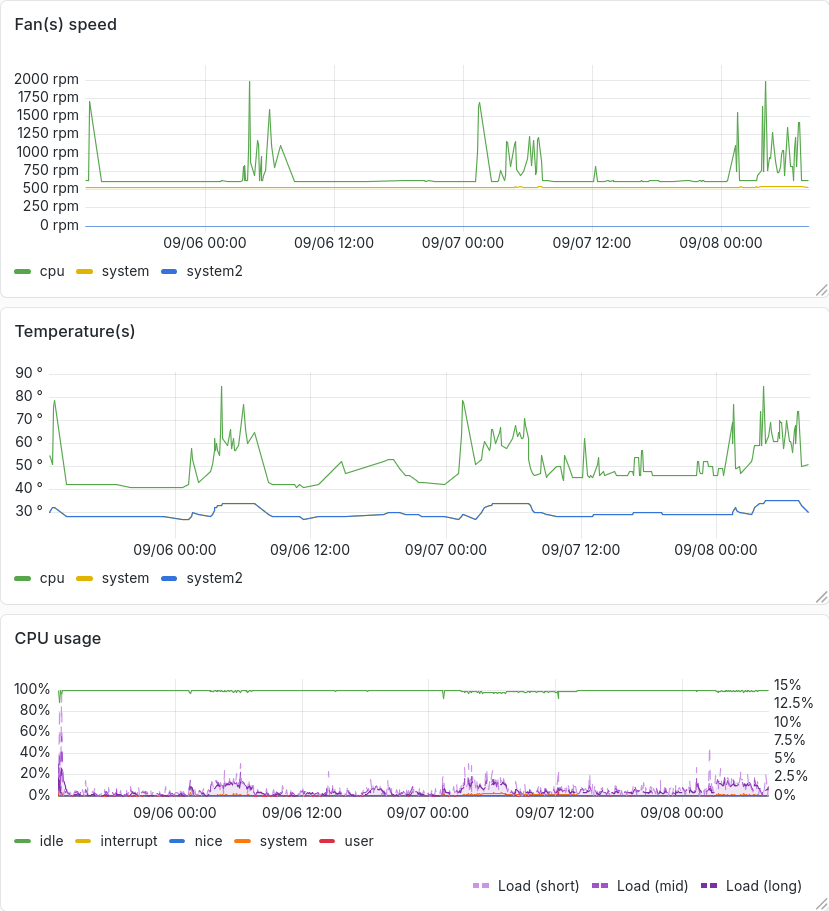
Once there, this little machine is pretty what I’ve been waiting for, for a long time. An extra 1 W is eaten with bhyve virtual machine, which is not that much.
And that’s all for now folks. See you in EuroBSD 2026 ;-)